AEScripts Heatmap v1.5 plugin for After Effects Full Version Free Download
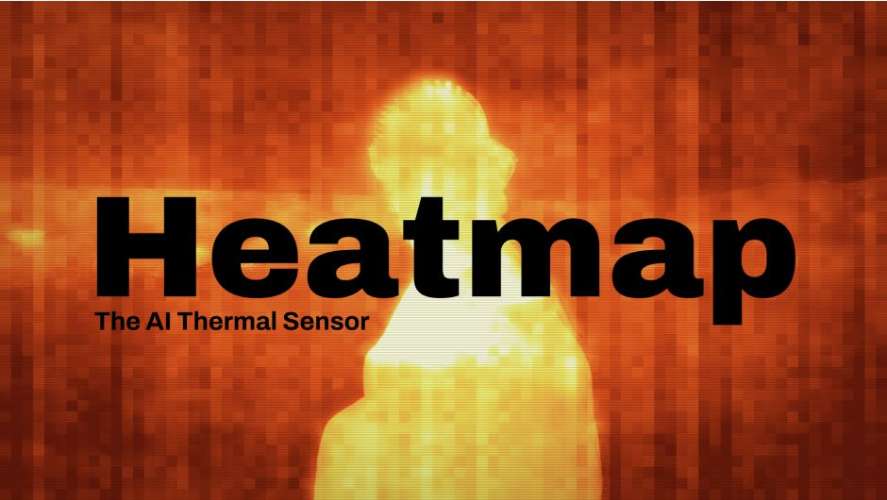
AEScripts Heatmap v1.5 is an AI-powered thermal-vision plugin for Adobe After Effects and Premiere Pro. Instead of simply applying a gradient to the brightness of footage, Heatmap uses a trained neural network to estimate the apparent heat distribution within each frame and convert ordinary footage into a convincing thermal-camera image.
AEScripts Heatmap official page
What is Heatmap?
Heatmap is essentially a virtual thermal sensor.
You give it ordinary video footage and the plugin analyses the image to estimate where heat would appear to be concentrated. It then renders that information using a thermal colour palette.
This distinction is important. Heatmap isn’t just taking the luminance channel and running it through a gradient map. Its neural network analyses the scene, separates the subject from the background and responds to apparent heat sources.
That makes it much more useful for creating believable thermal-camera footage than a conventional colourization effect.
AI Thermal Vision
The core of Heatmap is its trained neural network.
Each frame is analysed to estimate a heat map of the scene, with the system designed to recognise subjects and heat sources rather than simply interpreting bright areas as hot.
This is particularly useful for footage containing people, animals and environments where you want the thermal effect to have some relationship with the actual content of the image.
The result can resemble footage from a thermal imaging camera rather than ordinary video covered with red and blue colours.
Heat Source Controls
Heatmap provides controls for determining how the effect identifies heat.
The interface includes Auto subject detection as well as the ability to pick a point manually. This gives you a way to guide the effect when automatic interpretation isn’t producing the exact result you want.
That is useful for artistic control as well as problematic footage where the AI needs a little direction.
Thermal Palettes
Heatmap includes a collection of thermal palettes designed to reproduce different styles of thermal and infrared imaging.
The available palettes include Inferno, Magma, Ironbow, Rainbow, White Hot, Black Hot, Sulphur, Ember, Green Phosphor, White Phosphor, Aerochrome and Infrared, along with inverted variants for cold-oriented looks.
These palettes allow you to move between familiar thermal-camera appearances and more stylized surveillance or sci-fi imagery.
The palette isn’t merely a final colour filter. It is applied to the estimated heat range generated by the AI analysis.
Temporal Stability
AI analysis performed independently on every frame can produce unwanted flickering and crawling as the estimated heat changes slightly from frame to frame.
Heatmap addresses this with Temporal Stability, which carries the thermal estimate across frames. It provides three modes designed to maintain more consistent heat information during handheld shots and camera movement.
This is an important feature for video work.
Without temporal consistency, a thermal effect can immediately look fake because areas that should remain relatively stable constantly change colour.
Sensor Simulation
Heatmap doesn’t stop at estimating heat.
It also includes a Sensor Simulation system that reproduces imperfections associated with real thermal cameras. Controls include thermal noise, fixed-pattern noise, blooming, scan lines, scan-line count and vignette.
These details are useful because real imaging sensors don’t produce perfectly clean mathematical images.
Adding these imperfections can make the final footage feel considerably more convincing.
Scan Lines and Thermal Noise
Scan lines can be used to reproduce the appearance of certain surveillance and broadcast thermal systems.
Thermal noise and fixed-pattern effects add additional imperfections to the image, while blooming can simulate the way intense heat sources may affect the sensor.
These controls are individually adjustable, so you can make the result subtle or push it toward a deliberately stylized surveillance-camera aesthetic.
Levels and Gamma
Heatmap provides controls for black point, white point and gamma, giving you direct control over how the estimated thermal range is distributed across the selected palette.
This is useful when the default thermal interpretation doesn’t have enough contrast.
You can compress or expand the range and shift the visual emphasis toward particular heat levels.
Blend With Source
The plugin also provides a Blend with Source control ranging from 0 to 100 percent.
This allows you to mix the thermal interpretation with the original footage instead of completely replacing it.
A lower blend can produce a more subtle hybrid look, while a full-strength thermal render gives you the conventional thermal-camera appearance.
Sensor Resolution and Quality
Heatmap exposes controls for Sensor Resolution and Quality, allowing you to balance processing speed against the quality of the AI estimation. The quality options include Fast and Best, with the latter using the ViT-B model.
This is useful during production because you don’t necessarily need maximum-quality AI analysis while you’re experimenting.
You can work faster at lower settings and switch to the higher-quality mode for the final render.
Edge Snap and Detail
The plugin includes an Edge Snap control from 0 to 100 percent along with edge-aware detail processing.
These controls help maintain cleaner separation around subjects and edges, which is particularly important when you’re dealing with people or objects against relatively complex backgrounds.
Every Parameter Is Animatable
Heatmap exposes its main controls as animatable parameters.
That means the thermal look doesn’t have to remain static throughout the shot. You can change the heat interpretation, palette, levels, sensor characteristics or blend amount over time.
This makes the plugin useful for designed motion-graphics effects as well as straightforward thermal-camera simulations.
Use Cases
Heatmap is an obvious fit for surveillance footage, military-style visuals, search-and-rescue sequences and sci-fi scenes.
It can also be useful for music videos, trailers, commercials and experimental motion graphics where a thermal-camera aesthetic is needed.
For example, you could start with normal footage of a person and gradually transition into thermal vision, or cut between normal and thermal views as part of the storytelling.
Thermal Vision for VFX
For VFX work, the biggest advantage is speed.
Creating a convincing thermal-camera effect manually would require combining segmentation, colour mapping, noise, bloom, scan lines and other processing steps.
Heatmap packages the core process into one effect while still exposing enough controls to customise the result.
That makes it particularly useful when thermal vision is an effect rather than the central visual style of an entire production.
Heatmap vs a Gradient Map
This is where Heatmap is fundamentally different from a basic thermal-looking colour grade.
A conventional workflow might be:
Footage → Luminance → Gradient Map → Thermal Colours
Heatmap instead uses:
Footage → AI Scene Analysis → Estimated Heat Map → Thermal Palette → Sensor Simulation
The second approach can produce a much more convincing result because brightness and apparent heat aren’t treated as the same thing.
Local GPU Processing
Heatmap processes the footage locally on your own GPU.
The official listing explicitly states that processing runs locally, with no upload and no account required. It also uses caching and optimised interactivity for working directly inside the host application.
That’s particularly important for an AI effect because you aren’t required to send your footage to a cloud service just to generate the thermal interpretation.
After Effects and Premiere Pro
Although you’re cataloguing it as an After Effects plugin, Heatmap also supports Adobe Premiere Pro.
That means the same thermal-vision effect can be used directly in an editing workflow when you don’t need the more elaborate compositing capabilities of After Effects.
For an AE-heavy workflow, however, After Effects provides considerably more options for combining Heatmap with masks, tracking, compositing and other effects.
Who Should Use Heatmap?
VFX artists can use it when a shot needs thermal-camera footage without building the entire effect manually.
Motion designers can use it for stylized thermal and infrared visuals.
Editors working in Premiere Pro can apply the effect directly during the edit.
Filmmakers and commercial artists can use it for surveillance, sci-fi and technical visual styles.
It is less useful if you’re simply looking for a generic colour-grading plugin. Its purpose is much more specific.
Compatibility
Heatmap v1.5.0 was released on August 19, 2026. The official AEScripts listing supports After Effects 2021 through 2027 and Premiere Pro 2021 through 2027.
It supports macOS on both Apple Silicon and Intel, as well as Windows 10 and Windows 11. Processing is performed locally.
The regular price is currently $59.99, with a promotional price of $49.99 through September 4, 2026. A free trial is available, although trial renders are watermarked.
The product page currently identifies the version as 1.0 for its broader update track, while the version history lists v1.5.0 as the initial release dated August 19, 2026.
Final Thoughts
AEScripts Heatmap v1.5 is a genuinely interesting AI effect because it isn’t pretending to be a thermal camera simply by applying a colourful gradient.
Its neural network estimates heat distribution from ordinary footage, while Temporal Stability helps maintain consistency across frames and the Sensor Simulation system adds the imperfections that make thermal imagery feel like it came from an actual imaging device.
The combination of different thermal palettes, heat-source controls, edge handling, levels, gamma, source blending and GPU processing gives you plenty of room to customise the result.
For your After Effects collection, I’d classify Heatmap as an AI/VFX stylization plugin rather than a conventional colour effect.
If you need thermal vision occasionally, this could save a substantial amount of manual work. If you’re regularly creating surveillance, sci-fi, military, infrared or experimental footage, it’s considerably more useful.
Bottom line: Heatmap takes ordinary footage, uses AI to estimate what the scene might look like through a thermal sensor, and then gives you enough controls to make that result look like an actual camera rather than a cheap red-and-blue filter.
AEScripts Heatmap, Heatmap After Effects, Heatmap v1.5, After Effects thermal vision, After Effects thermal camera effect, After Effects AI plugin, After Effects infrared effect, After Effects thermal imaging, After Effects heat map plugin, After Effects surveillance effect, After Effects VFX plugin, Premiere Pro thermal effect, AI thermal vision plugin, After Effects AI effects, thermal camera effect After Effects
AEScripts Heatmap v1.5 plugin for After Effects Full Version Free Download
https://zeroupload.com/41f80c7bbd0312ccf670635a0604a04c
https://buzzheavier.com/wdcx4deqmys1
https://filekeeper.net/i1djc6szddms/Heatmap1.5_DownloadPirate.com.zip